Your Google Play short description is 80 characters long, and it is one of the first pieces of copy a player reads on your store listing. It has two jobs: tell the player in one glance why this game or app is worth installing, and reinforce the keywords you want to rank for. Most short descriptions I review fail at both because they try to say everything. This guide gives you a formula, a step-by-step writing process, before-and-after examples and a way to test your copy with Google Play’s own tools.
What the Google Play short description actually does
The short description shows on your store listing, where it acts like the opening line of the “About this app” or “About this game” section before a user expands the full description. Google Play can also show it in other places across the store. That means it has to work on its own, without your screenshots or video next to it.
For search, ASO practitioners generally treat the short description as one of the text fields Google Play uses to understand what your app is about, alongside the title and full description. Google does not publish how much weight each field carries, so think of it as a strong relevance signal rather than a magic ranking lever.
For conversion, the short description is a promise. If the promise is vague (“Fun game for everyone”), players have no reason to keep reading. If it is specific, players can decide quickly, and the ones who install are more likely to be the right audience.
The rules before the craft
- 80 characters maximum, including spaces and punctuation.
- No ranking, price or promotional claims. Google Play’s metadata policy bans terms like “best”, “#1”, “top”, “free” and “new” in the title, icon and developer name, and Google’s store listing guidance asks for the same restraint across your listing copy. Calls to action such as “Download now” fall in the same group.
- No misleading claims. Do not describe features the app does not have, and do not imply an endorsement you do not have.
- Write for people. Repeating keywords or listing them with commas makes the copy harder to read and can be treated as spam.
Policies change. Before you publish, read the current metadata policy page linked at the end of this post.
A simple formula for the Google Play short description
You will not fit everything into 80 characters, so build from four parts and keep the strongest two or three:
- Action or benefit: what the player does or gets (“Merge flowers”, “Build an empire”, “Track every expense”).
- Keyword: one secondary term from your keyword research, used naturally.
- Differentiator: what is different from the 10 competitors next to you in search (“offline”, “no timers”, “2-minute matches”).
- Context: mood or situation (“relax”, “on your commute”, “with friends”).
Lead with the action or benefit. Players scan, and the first three or four words carry most of the message.
Step-by-step: writing your short description
1. Define the one promise
Write one sentence, with no character limit, that answers: “Why would a player choose this over the game next to it?” If you cannot answer that, the problem is positioning, not copy.
2. Choose one keyword
Pick one secondary keyword from your research. Your primary keyword usually lives in the title already. Using one keyword well beats squeezing in three awkwardly.
3. Draft at least ten versions
Vary the opening verb, the differentiator and the context. Write some versions that are benefit-first and some that are feature-first. The first draft is rarely the best.
4. Count and cut
Count every character, including spaces. Cut filler words such as “very”, “really”, “amazing” and “fun”, which use space without adding meaning.
5. Read it with your screenshots
Put the line next to your first two screenshots. The copy and the visuals should tell the same story. If your screenshots show offline play and cozy art, the short description should not promise intense competition.
6. Check policy and tone
Remove any ranking claim, price claim, call to action or emoji. Read the line aloud. If it sounds like an ad, rewrite it as a description.
7. Test it
Pick your two or three strongest versions and test them with store listing experiments (see below) instead of choosing by opinion.
Before and after examples
These examples are written for fictional games to show the method. Character counts include spaces.
| Genre | Weak version | Stronger version |
|---|---|---|
| Merge puzzle | The best merge game ever! Download now for free! (48) | Merge flowers, restore a cozy garden and relax with offline puzzles (67) |
| Idle tycoon | Fun idle game with lots of content (34) | Build an idle factory empire that keeps earning coins while you are offline (75) |
| Racing | Amazing racing game with cool cars (34) | Drift, tune and race custom cars in quick 2-minute multiplayer races (68) |
| Word | Word game for everyone (22) | Relaxing daily word puzzles you can solve offline, with no timers (65) |
What changed in each case: the weak versions use generic adjectives, and the first one also breaks Google’s guidance with “best”, “free” and “Download now”. The stronger versions open with an action, include a searchable term (“merge”, “idle”, “multiplayer”, “word puzzles”) and add a concrete differentiator.
Testing your Google Play short description with store listing experiments
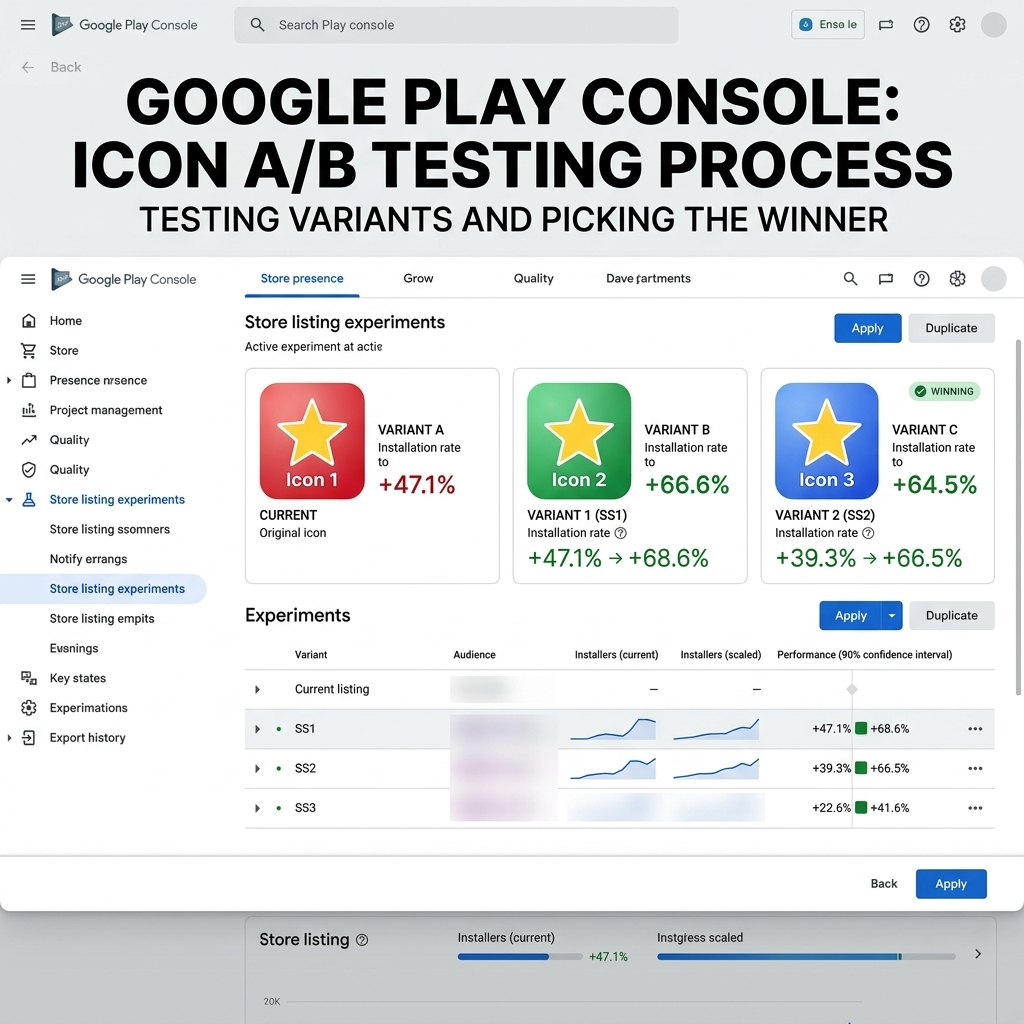
Google Play Console lets you run store listing experiments on your main store listing, including on the short description. In practice:
- In Play Console, open Grow users > Store presence > Store listing experiments (menu names can change; search “store listing experiments” in Play Console Help if you cannot find it).
- Create an experiment, choose the short description as the attribute to test and add your variants.
- Choose your target metric. Where the option exists, a retention-based metric is usually a better choice than raw first-time installers, because it rewards copy that attracts players who stay.
- Let the experiment run until Play Console shows a clear result. Stopping early because one variant leads on day two is the most common testing mistake I see.
- Test one attribute at a time. If you change the short description and the icon together, you will not know which one made the difference.
Localized experiments are also available, so you can test copy in a specific language rather than assuming an English winner works everywhere.
Custom store listings and localization
The short description you use for one market or audience does not have to be the same everywhere. Google Play’s custom store listings let you show different listing content by country and for other audiences, such as users who come from a specific campaign. A short description that speaks to a local habit or a specific ad creative often reads better than a generic global line.
For each language, write the short description natively instead of translating it. Keyword research by market (see the steps in our keyword research guide) tells you which local terms to use.
Related reading
- How to Use Store Listing Experiments in Google Play Console (A/B Testing Guide)
- A/B Testing for ASO: A Complete Guide
- What Is ASO and Why It Matters: Complete App Store Optimization Guide for iOS and Google Play (2026)
Common mistakes
- Repeating the exact title in the short description.
- Listing keywords separated by commas instead of writing a sentence.
- Using “best”, “#1”, “free”, “Download now” or emojis.
- Describing features the screenshots do not show.
- Changing the short description at the same time as other listing assets, which makes results impossible to read.
Key takeaways
- The Google Play short description has 80 characters to do two jobs: convert and reinforce relevance.
- Lead with an action or benefit, add one secondary keyword and a clear differentiator.
- Keep ranking claims, price claims, calls to action and emojis out of your listing copy.
- Draft at least ten versions, check them next to your screenshots and test the best ones with store listing experiments.
- Use custom store listings and native localization to match the line to each audience.
Official sources: Google Play metadata policy · Play Console Help: store listing experiments