The App Store subtitle is a 30-character line that sits under your app name on the product page and in search results. Apple uses it for search, which makes it one of only three text fields that directly help you rank on iOS, alongside the app name and the keyword field. Because it is also visible, it has to read well for people. Here is how I approach those 30 characters so they help both ranking and conversion.
What Apple says about the App Store subtitle
Apple describes the subtitle as a short summary of your app, limited to 30 characters, and recommends using it to explain your app’s value instead of repeating generic descriptions like “world’s best app”. Apple’s App Review Guidelines (section 2.3.7) also apply: metadata must not include pricing information, trademarked terms, popular app names or other irrelevant phrases added just to game search.
Two practical points matter for planning:
- You can only change the subtitle with a new app version. Unlike promotional text, it cannot be edited at any time, so every change is tied to a release.
- It is localizable. Each App Store localization has its own subtitle, so you can target different terms in different languages.
How the subtitle works with the app name and keyword field
Think of the app name, subtitle and keyword field as one combined pool of words. Apple can match search queries using words from across these fields, so a word placed in your subtitle does not need to appear again in the keyword field. Repeating it wastes characters you could use for another term.
A practical way to split the work:
| Field | Limit | Visible? | Best use |
|---|---|---|---|
| App name | 30 | Yes | Brand plus your primary keyword |
| Subtitle | 30 | Yes | Secondary keywords in a readable phrase that sells the app |
| Keyword field | 100 | No | Everything else, comma-separated, no repeats |
How to write an App Store subtitle that ranks and converts
1. Start from your keyword list
Take your prioritized keyword list and remove every word already used in the app name. From what remains, pick the two or three highest-priority terms that can sit together in a natural phrase. If you have not done the research yet, start with our step-by-step keyword research guide.
2. Write a phrase, not a list
“Puzzle, merge, garden, relax” may contain keywords, but it reads like spam and gives a player no reason to tap. “Cozy flower puzzle & decorate” carries searchable words and tells the player what the experience feels like.
3. Use every character you can, but not at the cost of clarity
You do not have to hit exactly 30 characters. A 27-character subtitle that reads cleanly is better than a 30-character one that sounds broken. Use “&” instead of “and” when you need to save space.
4. Match the subtitle to your first screenshots
In search results, players see your icon, name, subtitle and first screenshots together. If the subtitle promises “relaxing” and the first screenshot shows a timer and a boss fight, the mismatch costs you taps.
5. Plan the change with a release
Because subtitle changes ship with a new version, plan them into your release calendar. Change the subtitle and keyword field in the same version only if you accept that you cannot fully separate their effects.
Examples: weak vs strong subtitles
These examples use fictional apps. Character counts include spaces.
| App name | Weak subtitle | Stronger subtitle |
|---|---|---|
| Bloomtown: Merge Garden | Bloomtown merge garden game (27) — repeats the name | Cozy flower puzzle & decorate (29) |
| Gearworks: Idle Factory | The #1 fun game for everyone (28) — ranking claim, no keywords | Build a tycoon empire offline (29) |
| Lexi Lane: Word Puzzle | Word puzzle game for you (24) — repeats “word puzzle” | Relaxing crossword brain game (29) |
In each stronger version, no word repeats the app name, the phrase adds new searchable terms (“flower”, “tycoon”, “offline”, “crossword”), and a player still understands the app at a glance.
Measuring the impact of an App Store subtitle change
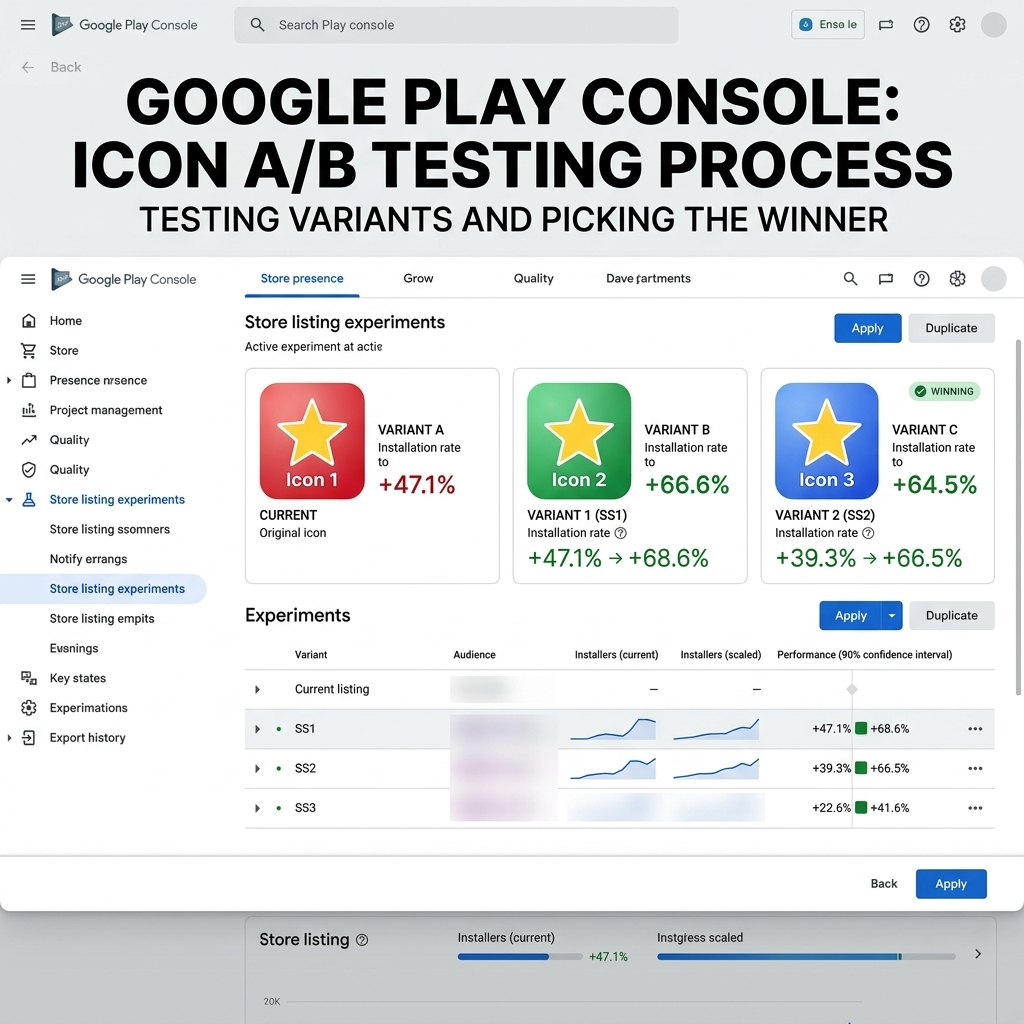
Apple’s product page optimization tests icons, screenshots and app previews, but not the subtitle. Custom product pages also keep the default subtitle. That means you measure subtitle changes with a before-and-after comparison:
- Record your keyword rankings and App Store search installs (from App Store Connect App Analytics) for a stable period before the update.
- Release the new version and keep other metadata unchanged if you can.
- Compare the same metrics over a similar period after release. Watch for seasonality, featuring and paid campaigns that can distort the result.
- Check conversion rate from search, not just impressions. A subtitle can win more impressions and still lose installs if it reads poorly.
Localizing your App Store subtitle
Every localization you add in App Store Connect gets its own subtitle, which gives you a new set of 30 characters per language. Use them properly:
- Research each language natively. A literal translation of “Cozy flower puzzle & decorate” may be correct but rarely searched. Repeat your keyword research with a native speaker and the local store’s search suggestions.
- Watch the length. Many languages need more characters than English for the same idea. Shorten the message rather than cutting words mid-phrase.
- Keep the promise consistent. The words can change by market, but the core value should match your screenshots and app experience everywhere.
- Prioritize markets. Start with the storefronts where you already get installs or plan to run UA, then expand.
Related reading
- What Is ASO and Why It Matters: Complete App Store Optimization Guide for iOS and Google Play (2026)
- A/B Testing for ASO: A Complete Guide
- Key Factors in 2025 for Game/App Visibility on Google Play
Common mistakes
- Repeating words from the app name.
- Writing a comma-separated keyword list instead of a phrase.
- Using ranking or price claims such as “#1” or “free”.
- Adding competitor or trademarked names.
- Copying the English subtitle into every localization without local keyword research.
Key takeaways
- The App Store subtitle has 30 characters, is used for search and is visible in search results.
- Treat the name, subtitle and keyword field as one pool of words and never repeat a word across them.
- Write a readable phrase that adds two or three new keywords and matches your first screenshots.
- Subtitle changes ship only with a new app version, so plan them into releases.
- Measure with before-and-after rankings, search installs and search conversion, since the subtitle cannot be A/B tested in product page optimization.
Official sources: Apple Developer: Creating your product page · App Review Guidelines, section 2.3.7